
Frequently Asked Question
Android version of Nov 28 2018 tested well with both audio & video feeds. Unlocking and locking was successful.
Apple ios latest Version 2.4.4: https://itunes.apple.com/in/app/cloudipcalls/id1077608612?mt=8
qr scan code:
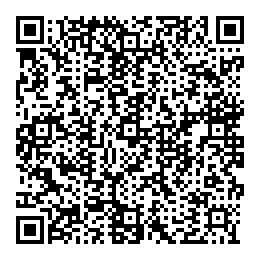
Android apk latest Version 3.3: : https://play.google.com/store/apps/details?id=com.test.ihome
qr scan code:
.png)
Below link is a screen capture of what the app looks like:
Below is your link to download the mobile app.
- For Apple ios latest Version 2.4.4: https://itunes.apple.com/in/app/cloudipcalls/id1077608612?mt=8
- For Android apk latest Version 3.3: : https://play.google.com/store/apps/details?id=com.test.ihome
The mobile app is very straight forward to setup.
- from the app menu, please select Settings
- Now, under Room Settings, you match the same info in your Monitor Room Settings. Your Device: for the app will be between 1 to 9. This means that each user app will have a different count.
- Next, we are still under Room Settings, ensure you match the Sync number of your monitor. This essentially clones the app after the monitor.
- When done, remember to Save your settings.
- Next, go to the SIP Settings
- ensure the ON/OFF box is checked
- Your proxy states: sip:66.185.27.147
- each user will use their own SIP account as previously provided. For instance, your user will look like this: User:[TBD]
- Password:[TBD]
- When done, remember to Save your settings.
That it! Ensure your mobile app has access to the internet through your local networking connection, WiFi, or data plan.
Visual sample on how to configure your mobile app
- Android App Settings:

- IOS App Settings:

Special Note: For Room settings, follow this guide:
- Room 101
- Floor: 1 (this means the same thing as to say 01)
- Room: 1 (this means the same thing as to say 01)
- Room 201
- Floor: 2 (this means the same thing as to say 02)
- Room: 1 (this means the same thing as to say 01)
- Room 301
- Floor: 3 (this means the same thing as to say 03)
- Room: 1 (this means the same thing as to say 01)
That it! Ensure your mobile app has access to the internet through your local networking connection, WiFi, or data plan.
Here are some QR codes that will copy to your phone app all Room Settings only. Manual input of SIP user account is needed.
QR code for Room/Unit #1
SIP settings [Phone App#1]:
- proxy: sip:66.185.27.147
- User:
- Password:
THIS PART INCLUDES ALL SOFTWARE YOU MAY NEED
As part of our system resources to help you setup multiple devices in complex environment, please find enclosed the following app and manual (s):
The Management Software is not compulsory to use with your NT-IP system. If there is no Management Center or Management Desk monitoring your network, chances are you don't need to use this software.
- IP_BEC_Management_English.rar [95.5 MB]. Once downloaded and deployed, one must run:
- DK_CMS\bin\watchdog.exe
- CMS [default login is: username: admin, and password:123456]
- IP Management Setup (2).pdf
- IP_Helper1_Page26_Fill.pdf
Special Notice (March 20, 2020): The Management software (CMS) cannot retrieve past logs from your devices. It has to run at all time in the background to capture your logs (card logs, phone logs, etc,..).
Also, please find enclosed the following app to identify on your devices [door stations, monitors, mobile apps] on the network or to upgrade your NT-IP Intercom system:
Here is how to use the above tool to perform a firmware upgrade/update:
- Once the IP_RemoteUpgrade.zip has been downloaded. You want to extract the app from the compressed file using winrar or winzip program. If you don't have it on your PC/Laptop already, please follow either link to also download this app to be able to extract the file:
- Install one of the above program, then double click on the IP_RemoteUpgrade.zip in your download directory (your PC/Laptop).
- extract the program to your hard drive, then run / open the file.
- Next, is the link to your NT-IP System Image - Firmware. If you are unsure of your product model we suggest to refer to your quote / invoice number / order number... [Don't update your firmware is there is no technical reason to do so!]
- follow the link and download the desired firmware: after your firmware has been successfully downloaded, use the select button to choose the firmware for your door station to upload.
- Make sure the correct IP address is entered in the IP entry 192.168.68.90 (e.i.)
- Now select the Upgrade button. There will be a notification that will show up stating if the upgrade is successful.
- If your firmware updated/upgraded successfully, then you can manually power cycle the door station once more.
- if the your firmware did not update/upgrade successfully, then we my have to issue a warranty exchange (if covered) or a repair service.


Here is the main Cellphone/mobile app: NT-IP-INTERCOM app for IOS & Android devices
- Apple IOS latest Version 2.4.4: https://itunes.apple.com/in/app/cloudipcalls/id1077608612?mt=8
- Android apk latest Version 3.3: : https://play.google.com/store/apps/details?id=com.test.ihome
Here is an alternate Cellphone/mobile app: NT-IP-INTERCOM app for IOS & Android devices. Use this alternate app if our standard app simply doesn't work.
- IOS app [https://apps.apple.com/us/app/bas-ip/id718010085]
- Android app [https://play.google.com/store/apps/details?id=com.bas.basip&hl=en_CA]
I hope this helps you manage you NT-IP systems.